
jQuery is a JavaScript library that easily lets you manipulate HTML elements, i.e., the DOM.
Back then, JavaScript had complicated methods to do basic DOM manipulations. jQuery came around in 2006 with easy and fast methods to handle HTML elements.
Take a look at the below JS native code that appends an HTML element to the DOM (abstracted from Stack Overflow)
og_html = document.getElementById("inner").innerHTML;
new_html = "<div id='new'>" + og_html + "</div>";
document.getElementById("inner").innerHTML = new_html;
Here’s how it’s done in jQuery
$( ".inner" ).wrap( "<div class='new'></div>" );
As you can see jQuery lessens the code writing.
Although modern JavaScript has introduced simplified methods for DOM manipulation jQuery still offers a more easier approach.
What’s The DOM
Take a look at the below html document:
<!DOCTYPE html>
<html>
<head>
	<title>jQuery sample</title>
</head>
<body>
<div class="panel">
	<h3 class="panel__title">Panel Title</h3>
	<div class="panel__content">
		<p>Lorem ipsum dolor sit amet, consectetur adipisicing elit, sed do eiusmod tempor incididunt ut labore et dolore magna aliqua.</p>
	</div>
	<div class="panel__footer">
    <span class="">11 October | Peter Bete</span>
	</div>
</div>


<script src="https://code.jquery.com/jquery-3.7.1.min.js"></script>
<script>
	//jquery code goes here
</script>
</body>
</html>
It can be represented by the below structure.
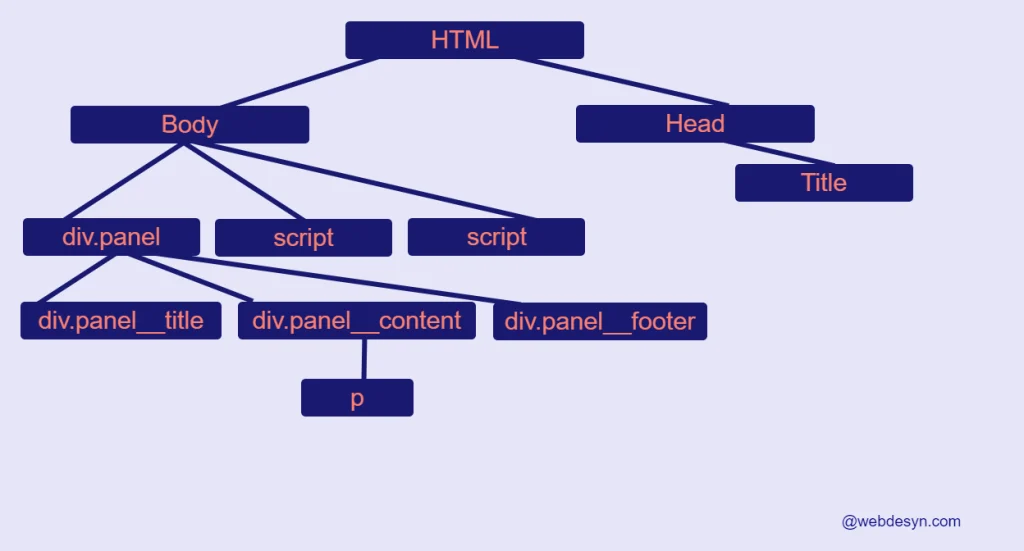
The Document Object Model is a structural presentation of a web page in a tree-like fashion of interconnected nodes (elements). The nodes are the HTML elements, text and attributes that can be manipulated by JavaScript, e.g element addition, editing, deletion, text addition, etc.
How To Use jQuery
<script src="https://code.jquery.com/jquery-3.7.1.min.js"></script>
jQuery is included in HTML pages via the script tag. The jQuery source URL is written in the src attribute.
You can self-host jQuery yourself or use the jQuery CDN.
CDNs are fast as they have servers around the globe. The server nearest you will be used to deliver content fast.
You can include the jQuery script tag in the head tag or at the bottom before the closing body tag. The latter one is preferred because jQuery loading won’t interfere as the DOM loads as well.
jQuery Syntax
jQuery uses the $() function for most of its operations. This function (object) has methods and properties you can use for DOM manipulations.
For the most part, this function requires a CSS selector string, a native element object, or an array of element objects as an argument.
//Using a CSS selector
const elem = $('.panel');
//using the native DOM element object
const elem = $( document.querySelector('.panel') )
//Select all matching divs as an array of element objects
const elems = $( document.querySelectorAll('div') )
The $() function returns a jQuery object with properties and methods for DOM manipulation.
Properly Loading jQuery
Typically, jQuery code is wrapped in a function executed when the DOM is fully loaded, i.e. when all elements are loaded.
$(document).ready(function(){
   //jQuery code goes here
});
If you write jQuery code targeting an element that hasn’t been loaded yet the code will not work. Take a look below:
<script>
   $('h1').text('My Heading')
</script>

<h1>Heading 1</h1>
This jQuery code won’t work because the jQuery code is run before h1 is loaded.
You can put all jQuery scripts at the bottom of the page before </body> to ensure that all jQuery code runs when all elements have loaded.
<body>
<h1>Heading 1</h1>

<script src="https://code.jquery.com/jquery-3.7.1.min.js"></script>
<script>
//jQuery code here
</script>
</body>
jQuery DOM Methods
jQuery has a variety of methods (functions) for DOM manipulations. To access an HTML element, write the $ function with an argument representing the element.
The argument can be a CSS selector string, an element object, or an array of element objects.
See the Pen jquery example by Denver Kunaka (@Denver-Kunaka) on CodePen.
We’ll be referring to this HTML sample for examples. You can add the codes below in the script tag and see the changes.
Writing Inside Elements
You can insert HTML content inside an Element using the html() method. Add the span in the panel__footer element
$('.panel__footer').html('<span>11 October | Peter Bete</span>')
For text insertion, you can use the text() method like so:
$('.panel__title').text('jQuery Rocks!')
Appending & Prepending Elements
You can insert one element after another using the append() method. Let’s add a link inside the .panel__content element after the p element
$('.panel__content p').append('<a href="#">View</a>')
You can insert an element before another with the prepend() method.
$('.panel__content p').prepend('<a href="#">View</a>')
You can use the after() or before() methods to achieve similar results.
Wrapping Elements
The wrap() method allows you to wrap another element, i.e. containing it inside another element. Wrap the .panel__title with a div:
$( ".panel__title" ).wrap( "<div class='wrapper'></div>" );
The wrapInner() wraps the html content inside an element. The example below wraps the h3.panel__title contents inside the <a> tag
$( ".panel__title" ).wrapInner( "<a href="#"></a>" );
Getting and Setting Attributes
You can add content inside attributes using the attr() method like so:
$( ".panel__title" ).attr( 'id','heading');
Getting an attribute value.
//get the class attribute from h3
    const h3 = $( "h3" ).attr( 'class');
    //Output: .panel__title
    alert( h3 );
The .prop() method gets or sets an element’s property value like disabled, checked, tagName, nodeName etc
$( ".panel__title" ).prop( 'tagName');
Set input property to checked
$( ".panel__title" ).prop( 'checked', true);
Find more DOM Manipulation methods here
Manipulating CSS
jQuery makes it easy to add CSS to elements with the .css() method. The method accepts an object with CSS properties and their associated values.
$('.panel').css({
        'background': 'orange',
        'border': '2px solid black'
    });
Dom Traversal
Child Elements
Child elements are elements contained inside another element, i.e. descendants. With jQuery you can access first-level child elements with the .children() method like so:
 //List the children tag names of .panel
const divs = $('.panel').children();
//Loop the children
   divs.each(function(){
       console.log( $(this).prop('tagName') );
   })
This method returns an array of jQuery element objects.
The jQuery .each() method is used to loop a set of jQuery DOM objects. It accepts a callback function as an argument. The callback function has access to the loop’s current element (this).
Sibling Elements
Siblings are elements on the same node level.
console.log( $('.panel__title').siblings() );
//Returns elements:
// .panel__content
// .panel__footer
Parents
A parent is the last ancestor of an element; the container.
console.log( $('.panel__title').parent() );
//Returns element:
// div.panel
Next & Prev
Target the next neighbor element
console.log( $('.panel__content').next() );
//Returns element:
// div.panel__footer
Target the previous neighbor element
console.log( $('.panel__content').prev() );
//Returns element:
// div.panel__title
Filter elements
The find method narrows a specific set of child elements to return; even nested child elements
console.log( $('.panel__content').prev() );
//Returns element:
// div.panel__title
Find more DOM Traversal methods here
jQuery Events
Creating events in jQuery is easy. You can use the .on method or individual event methods provided by jQuery.
The .on() method typically requires two arguments, the event name and the callback function. This function will run whatever is inside when the event is triggered.
The callback function is passed a jQuery Event object parameter with properties that store the element clicked, event type etc.
//change the div.panel background color when the h3.panel__title is click
    $('.panel__title').on('click',function( event ){
        $('.panel').css('background','orange');
    });
Find more about jQuery events
jQuery Effects
With jQuery you can easily apply cool animations and effects like sliding, fading and toggling elements.
Toggling allows you to show hidden elements (display: none) or hide displayed elements when an event occurs.
The .slideToggle() will have a sliding effect. The .fadeToggle() will put a fading effect while showing or hiding elements
//Alternate between showing and hiding the p.panel__content when the h3.panel__title is clicked
    $('.panel__title').on('click',function( event ){
        $('.panel__content').slideToggle()
    })
These functions accept an argument that determines the effect duration in milliseconds.
//Alternate between showing and hiding the p.panel__content when the h3.panel__title is clicked
$('.panel__title').on('click',function( event ){
    //the effect will run for 5s
    $('.panel__content').slideToggle(5000)
})
Find more about jQuery effects
jQuery Pros
Saves Time Writing Code
With jQuery you don’t need to write long lines of code for Dom manipulations. The jQuery syntax is generally shorter than native JavaScript functions.
Solves Browser Inconsistencies
In addition, jQuery saves you from reinventing the wheel because most of the heavy-lifting has been done for you. jQuery handles all the browser inconsistencies and bugs.
Wide support
Many browsers including Internet Explorer support jQuery. jQuery uses polyfills to cater for features unsupported by older browsers.
jQuery Cons
The jQuery file can add extra bytes of data increasing load time. However, minification and cache can nullify the slow load times.
The benefits outweigh the cons.
jQuery $ Conflicts
jQuery uses the global $ function name which may conflict with other scripts that may use the same name.
JQuery has a function .noConflict() which releases the global $ name. After this you’ll be using the alias jQuery function name.
$.noConflict();
// Other code that uses $ as name can follow here.
const $ = {};
WordPress automatically loads jQuery and frees usage of the $ name. You have to use the jQuery function name instead.
$.noConflict();
// Use the jQuery function name to access jQuery methods and properties
jQuery(document).width();
//this will throw an error of undefined $
$(document).width();
jQuery Best Practices
Put jQuery script at the bottom
By loading jQuery in the bottom before the closing </body> tag ensures that all elements are loaded before you attempt to manipulate any element
In addition, loading scripts at the bottom prevents blocking the page from loading and rendering improving speed and user experience.
Using CDNs
Use CDNs that host the jQuery source file for you. CDNs deliver content fast as they use servers closest to a user’s location. You can use the free jQuery CDN as your source instead of hosting the source file yourself.
Avoid complicated selectors
Try to use simple selectors like class names or IDs instead of deeply nested selectors. This can give a little performance boost and also for readability
//Bad
$('.parent .child #sub-child')
//Better
$('.parent #sub-schild')
In addition, avoid traversing the DOM too much as this may break your code if you change the HTML structure.
